
Google's New Performance Max Asset Group Themes Tool Makes Seasonal Ad Creation Easier

As Google continues to evolve AI-driven tools in Google Ads, a new “Apply Theme to Asset Group” feature has popped up in advertiser Performance Max accounts. The feature allows you to copy an existing asset group to quickly create seasonal, holiday, or stylistic variations of existing ads. In this blog, we explain how the new feature works and show you how to try it out.
What Is the Benefit of Using Asset Group Themes?
The new asset group theming feature allows you to quickly create seasonal or event-specific ad variations without building assets from scratch, using Google's AI. It saves advertisers time and effort required to develop fresh creative, reduces reliance on external design or copywriting tools, and helps quickly launch campaigns around key moments, holidays, back-to-school promotions, or seasonal sales. Because the feature creates a themed version of an existing asset group rather than modifying the original, it provides a low-risk way to test new messaging and creative concepts while preserving the performance and learnings of the proven asset groups. As AI Overviews continue to reshape the search landscape, Performance Max and tools like this are becoming an increasingly important part of staying visible in AI conversations.
How Do I Get Started?
You can find the new feature by going into your Performance Max > Asset groups and clicking on the ‘+’ Button. There you will see it below the "Copy existing asset group" option. This makes it easy to start with a proven asset group and then create a themed variation based on a specific season or event.

What Themes Are Available?
You can choose from existing built-in themes centered around holidays, seasonal events, back-to-school promotions, and key cultural moments, sorted by the closest upcoming date.
Available Themes
Category | Theme Name |
Generic | Celebration, Sale / Promotion, Studio setting / Editorial |
Seasons | Winter, Spring, Summer, and Fall |
Cultural Moments/Holidays | Back to school, Halloween, Cyber 5 (Black Friday / Cyber Monday), Christmas, Hanukkah, New Year, Lunar New Year, Valentine’s Day, Easter, Mother’s Day, Father’s Day |
You can find the full catalog of available themes on the Asset groups page in Google Ads.
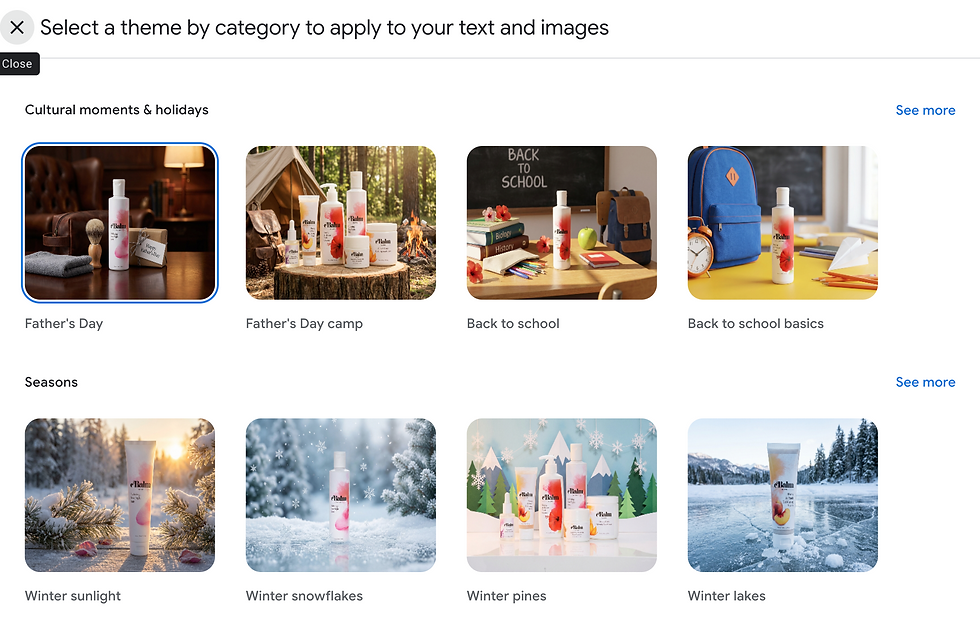
How To Apply A Theme to An Existing Asset Group?
Once you’ve navigated to the “Apply Theme to Asset Group” tab, follow these steps:
Choose an existing asset group in the “Select an asset group to copy” popup.
Select a theme from the catalog. This allows Google to customize your existing copy around that theme, improving your relevance.
Review the AI-generated assets.
Make any edits or refinements to the assets.
Select Save.
Here is a preview of an ad generated by Google where we chose a summer theme.

Images were not edited by this prompt in our ad. But Google’s theme selection interface references both text and images. This suggests Google may be expanding this functionality to include image generation or customization.
Should You Give It a Try?
For advertisers who regularly create seasonal campaigns, the ability to quickly apply themes to asset groups in Performance Max campaigns could reduce the time spent building new asset groups and testing fresh messaging. If you're already running Performance Max campaigns, it's worth experimenting with themed asset groups and comparing their performance against your standard creative. Just remember that it's still your responsibility (or your Google Ads consultant's) to review AI-generated content and ensure the messaging aligns with your business goals and brand standards.
